How can we help you?
Browse popular FAQs
When will I receive my booking confirmation?
This depends on the policy of your activity.
- For activities with instant confirmation: You will receive your booking confirmation email within 5 minutes of making your booking.
- For activities without instant confirmation: You will receive your booking confirmation within 24-48 hours of making your booking. Check the package details > Confirmation section of your booking/activity page for the booking confirmation time for your activity.
If you have not received your booking confirmation even after the time mentioned above, please refer to this article.
Can I book an activity on behalf of someone else?
Yes. Just be sure to provide their details when finalizing your booking details to make a booking on behalf of your family and friends.
Do note that some Klook vouchers are non-transferrable and can only be used by the person whose details are indicated on the voucher. As such, please make sure that you've keyed in the correct guest details when making your booking.
[In-app activation] How can I activate the eSIM on iOS devices?
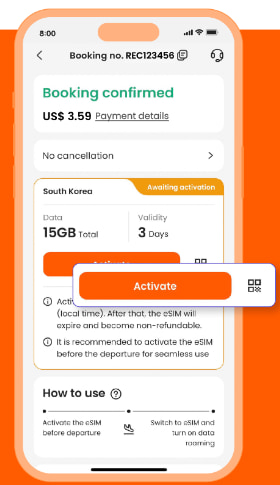
- Step 1. Open the Klook app. Go to Account > Bookings. Tap the “Activate” button. (You can also scan the QR code on your voucher from Settings > Cellular > SIMs > Tap Add eSIM > scan QR code.)
- Step 2. Make sure to read the reminder before activation. Don’t worry - your data usage won’t start immediately upon activation.
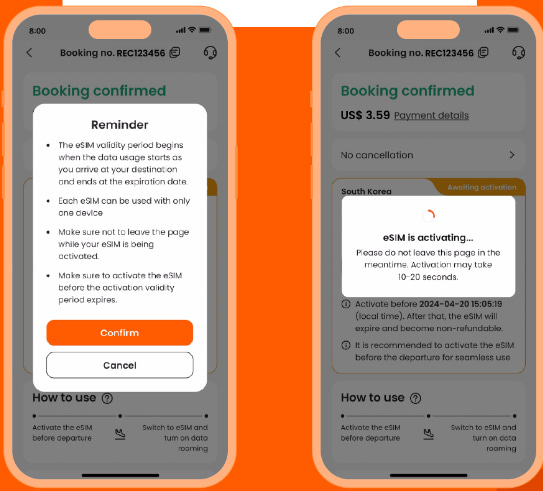
- Step 3. Activate the eSIM on a stable connection. Please do not leave the page while the eSIM is being activated.
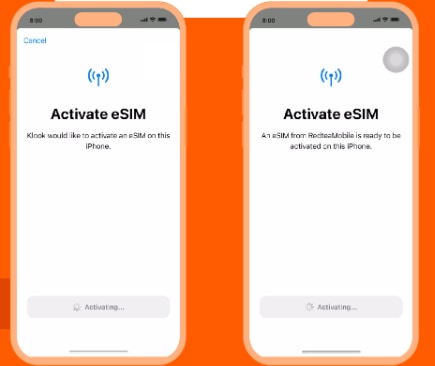
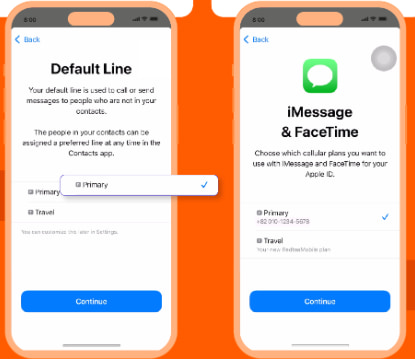
- Step 4 & Step 5. This is to use the eSIM for calling and iMessage right away. Select the “Primary” line before arriving at your destination.
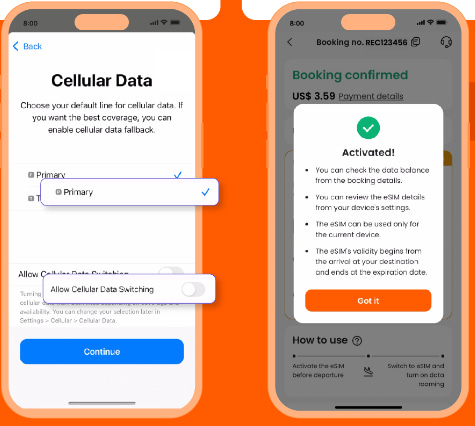
- Step 6 & Step 7. Set the “Primary” line to use cellular data until you arrive at your destination, and toggle off “Allow Cellular Data Switching”. This way, you can ensure the eSIM data won’t be used in advance.
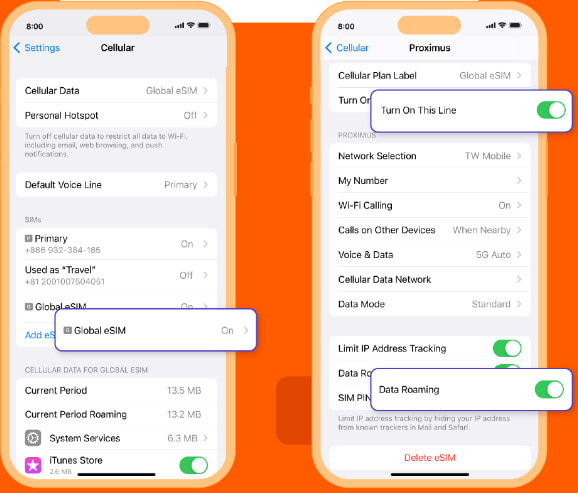
- Step 8. When you arrive at your destination, turn on the eSIM line and turn on data roaming.
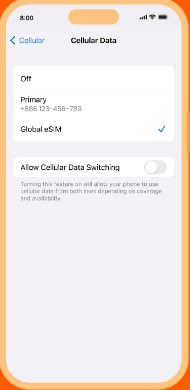
- Step 9. Change the cellular data setting to use your eSIM.
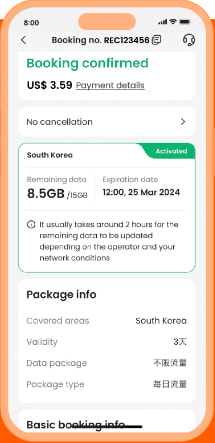
- Step 10. Check the eSIM status in your Klook booking. Tap the icon on the top right corner to get help with any issues. Please note that checking the data balance on the app is enabled only for the “Data in total” packages.
Do I need to create a Klook account before I can book?
You'll need to create a Klook account to book something on Klook activity. You can sign up using your email, phone number, or a third-party account like Facebook, Google, or Apple.
To book an activity on Klook:
- Browse through activities for something that interests you
- Select the packages you'd like to purchase
- Enter your details
- Make your payment
All that's left to do is wait for your booking to be confirmed.
Can I amend my booking details?
For some bookings, you can modify some details of your booking directly via Klook, including details like:
- Participation date
- Traveler's information
To modify your booking details, please follow these instructions:
On the website
- Click on your profile picture in the top right corner of the screen
- Go to "Bookings"
- Select the booking you'd like to view.
- Scroll down to the "Cancellation policy" section
- Click on "Amend booking".
- Make the necessary changes to your participation date or contact info
- Check your email for your booking change confirmation email and updated voucher.
On the app
- Tap on the "Account" button in the bottom right hand corner of the screen
- Go to "Bookings".
- Select the booking you'd like to view.
- Scroll down to the "Cancellation policy" section.
- Tap on "Amend booking"
- Make the necessary changes to your Participation Date or Contact Info
- Check your email for your booking change confirmation email and updated voucher.
Note: You cannot amend your booking details for the following:
- Activities with a "No cancellation" or a "Conditional cancellation" policy.
- Vouchers with codes that do not begin with the letters "KLK".