How can we help you?
Browse popular FAQs
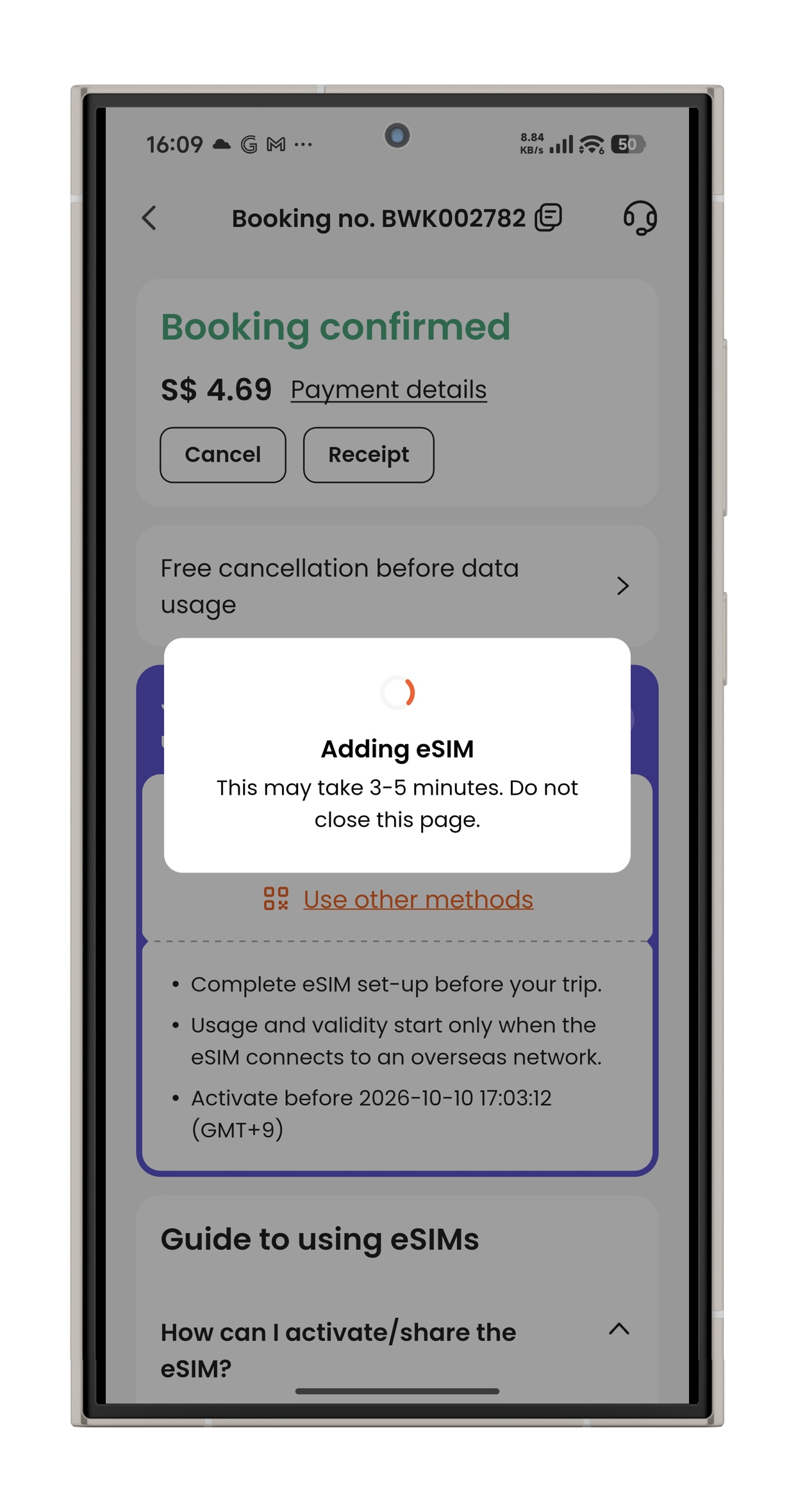
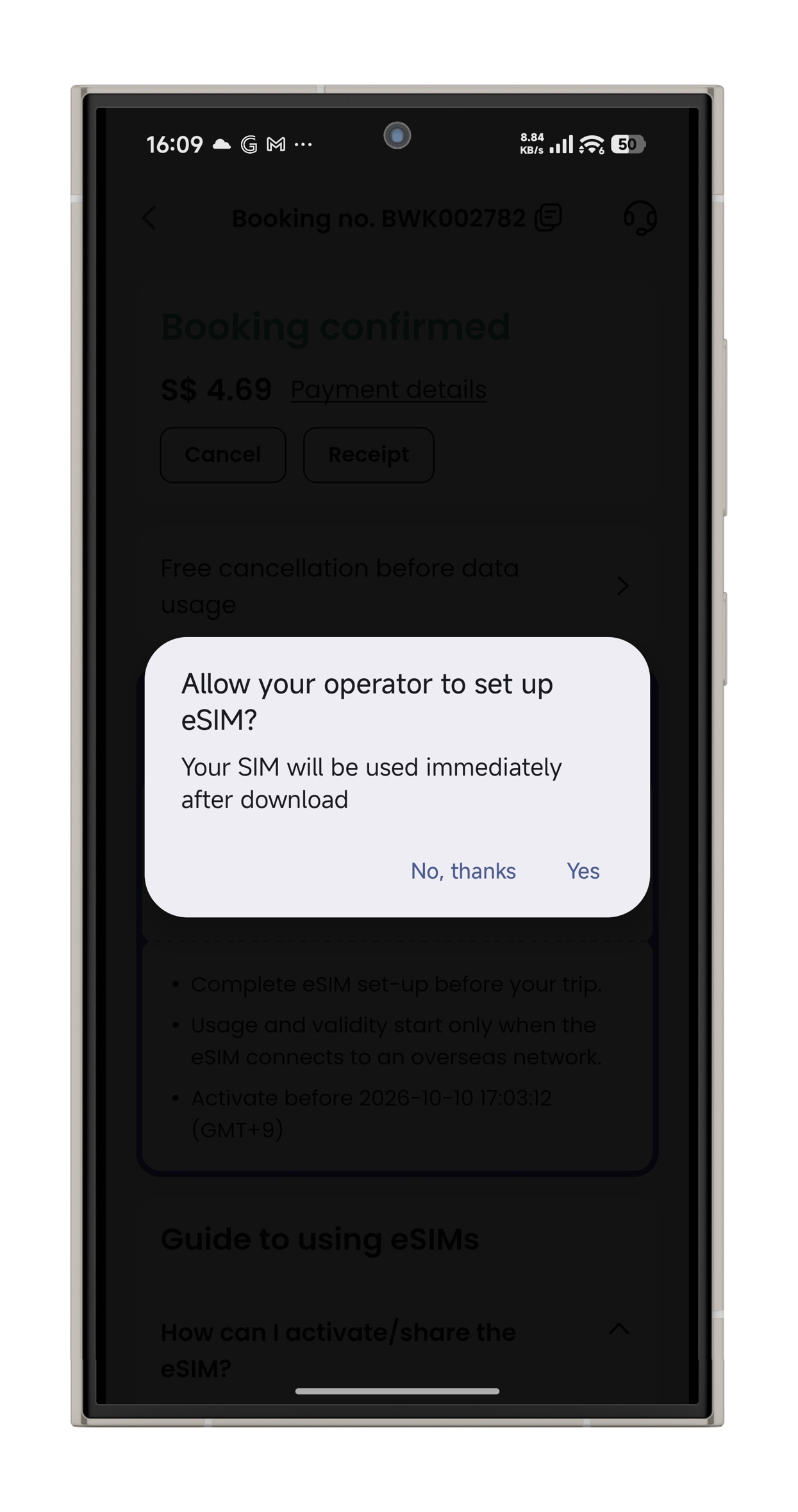
[In-app activation] How can I activate the eSIM on Android devices?
- Step 1. Open the Klook app. Go to Account > Bookings. Tap the “Activate” button. (You can also scan the QR code on your voucher from Settings > Cellular > SIMs > Tap Add eSIM > scan QR code.)
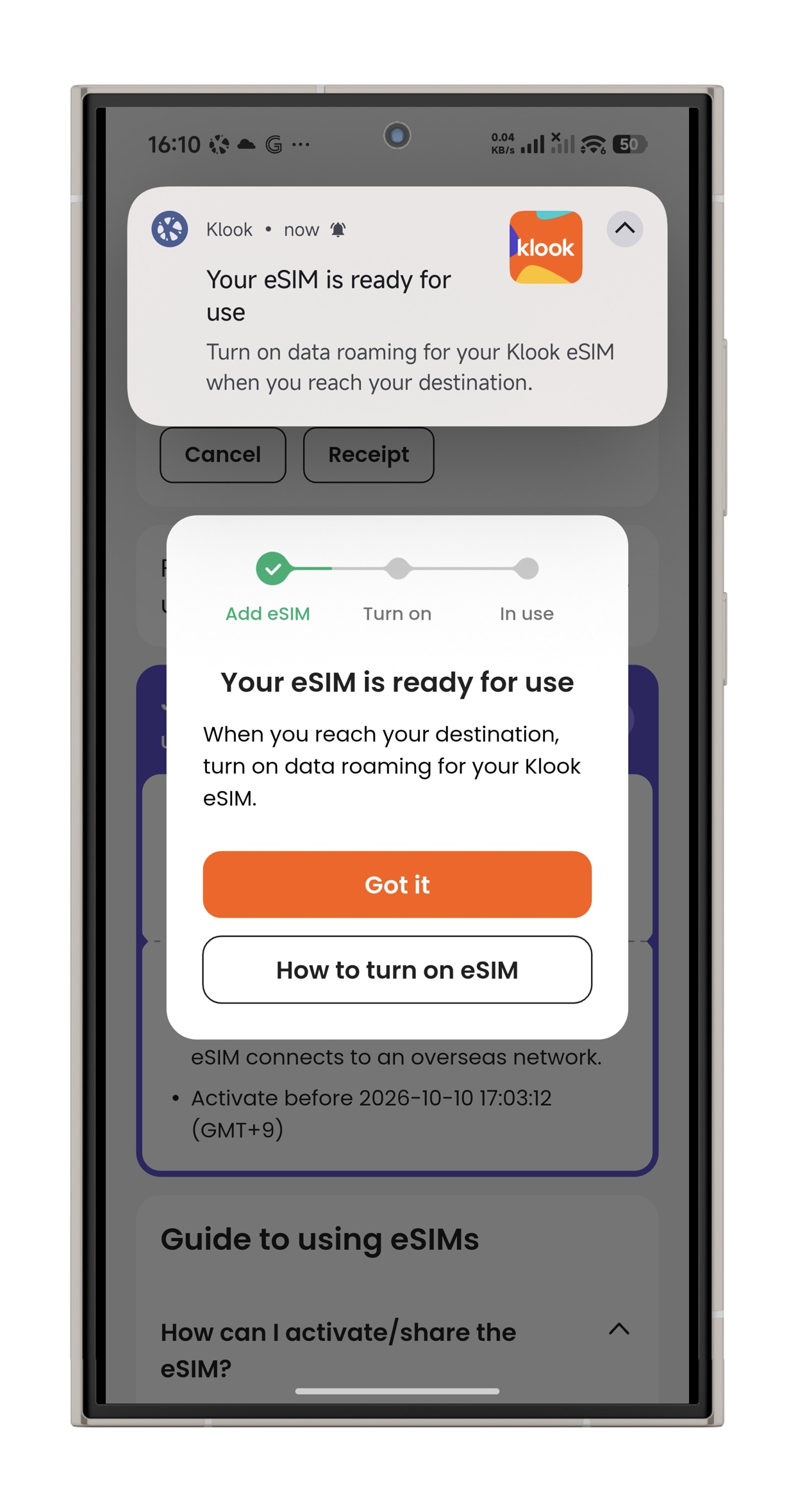
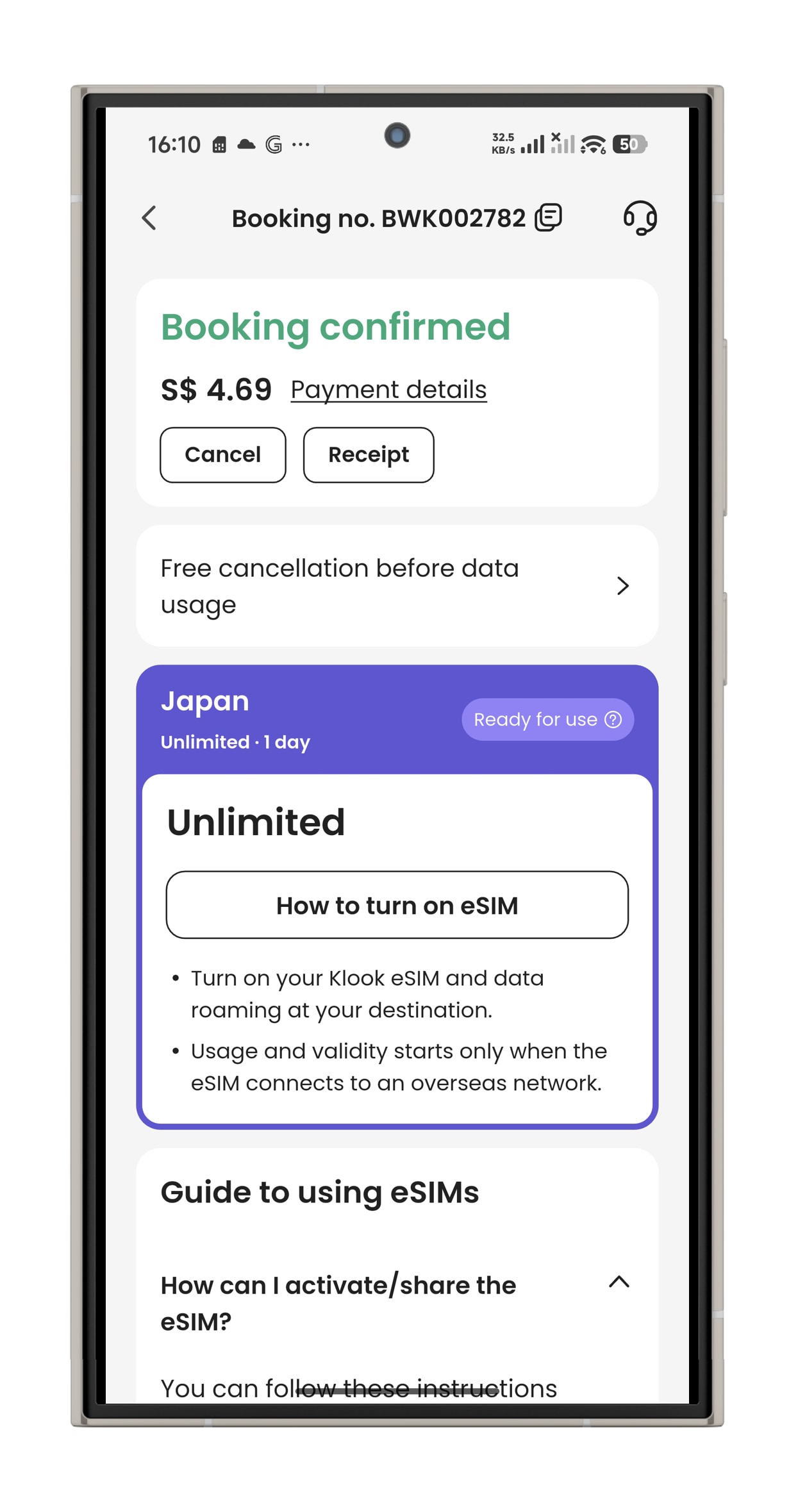
- Step 2. Make sure to read the reminder before activation. Don’t worry - your data usage won’t start immediately upon activation.
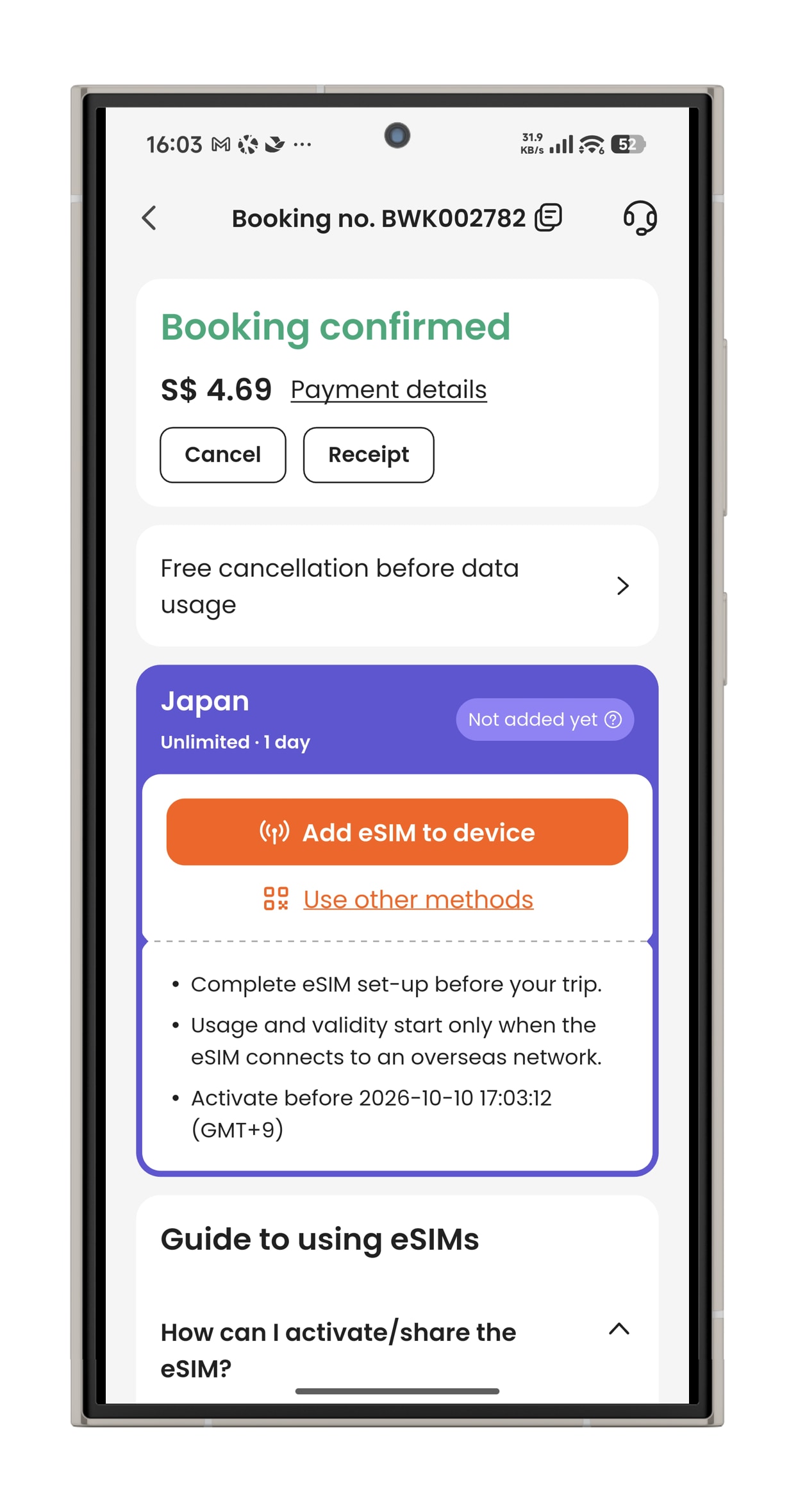
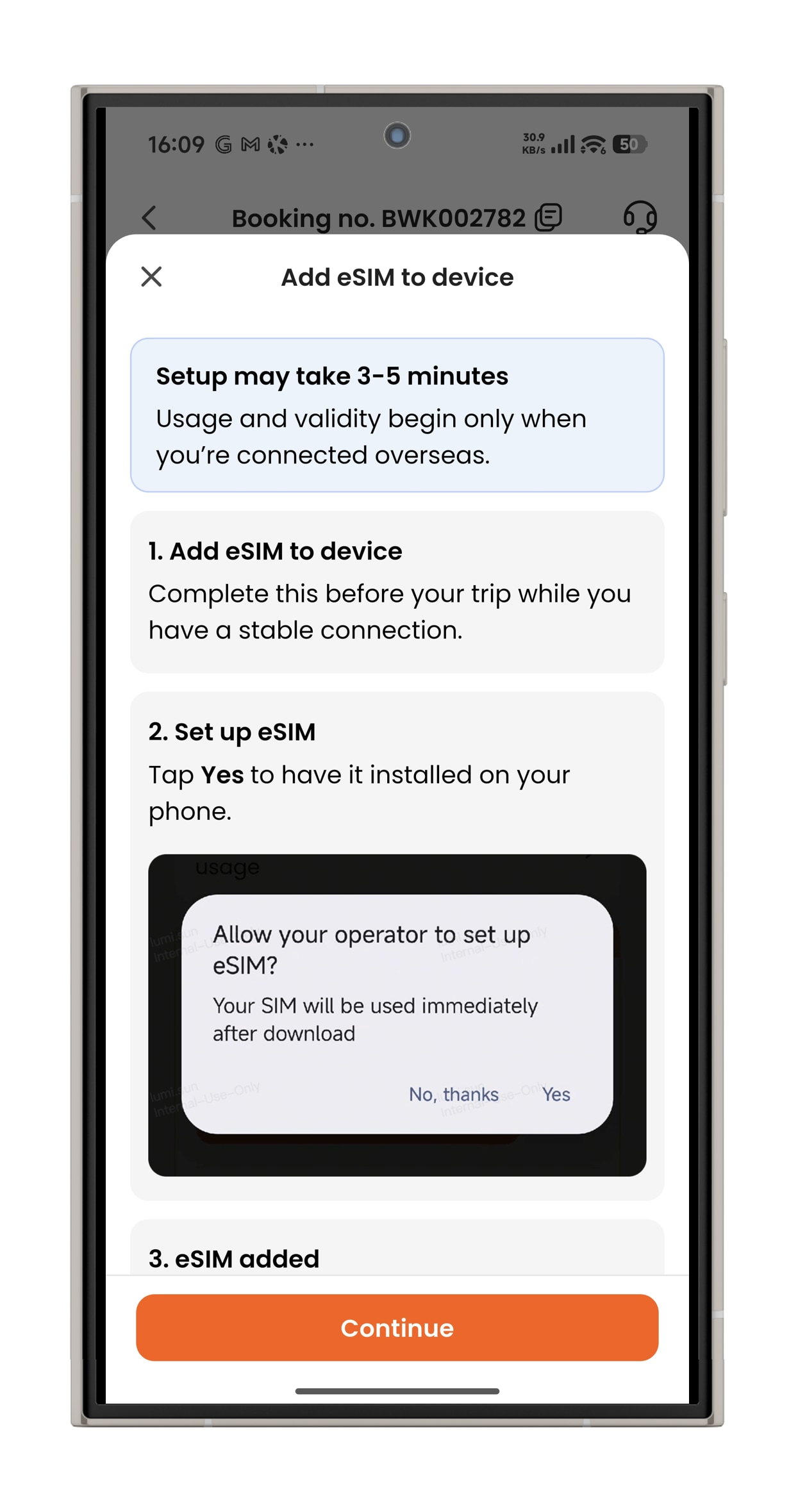
- Step 3. Activate the eSIM on a stable connection, and allow the eSIM to be installed on your device. Please do not leave the page while the eSIM is being activated.
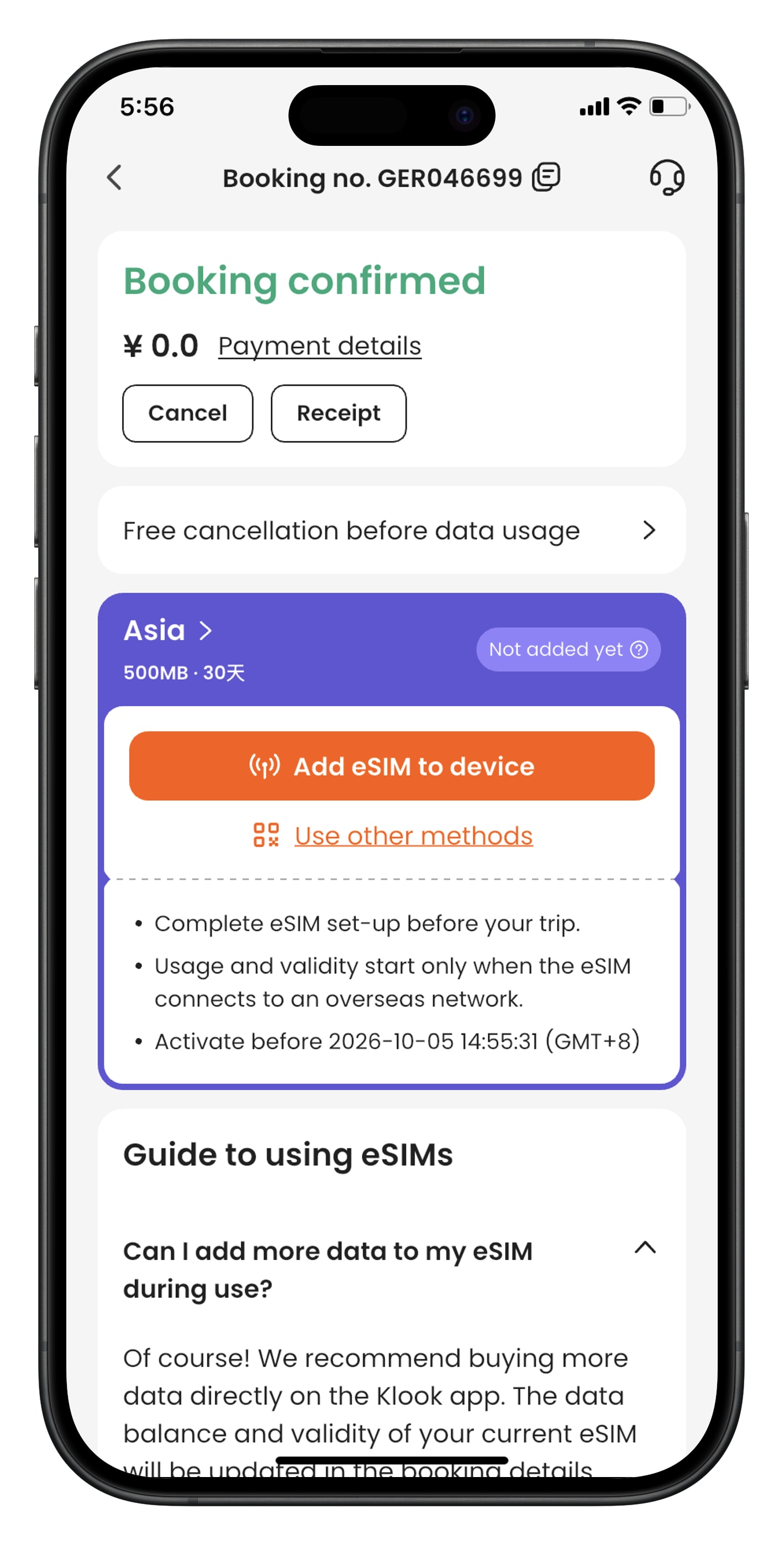
[In-app activation] How can I activate the eSIM on iOS devices?
- Step 1. Open the Klook app. Go to Account > Bookings to find your voucher. Select “Use other methods” to see your QR code.
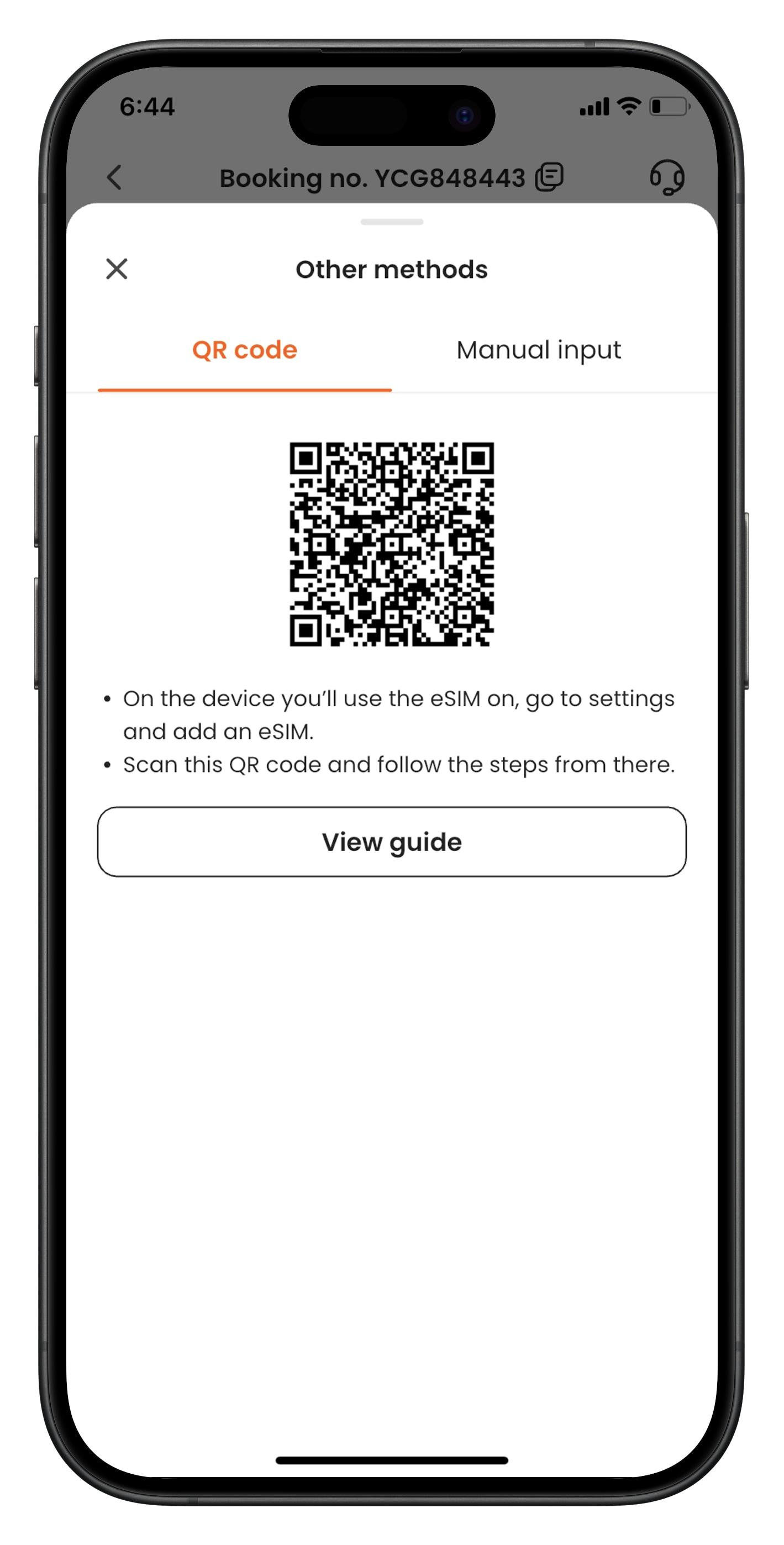
- Step 2. From the device that you’d like to use the eSIM, go to Settings > Cellular > SIMs. Tap “Add eSIM” and “Use QR Code”, and scan the QR code.
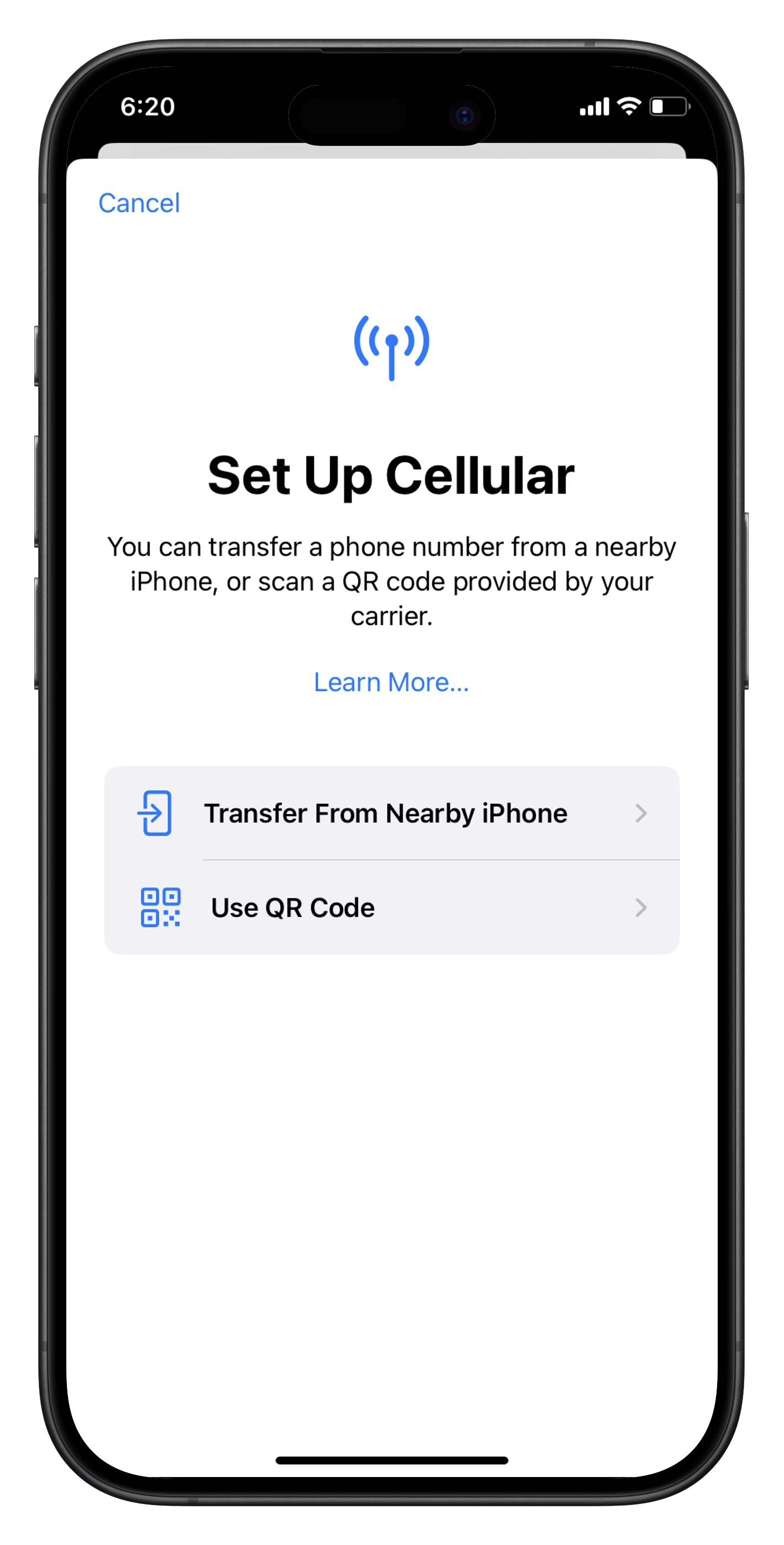
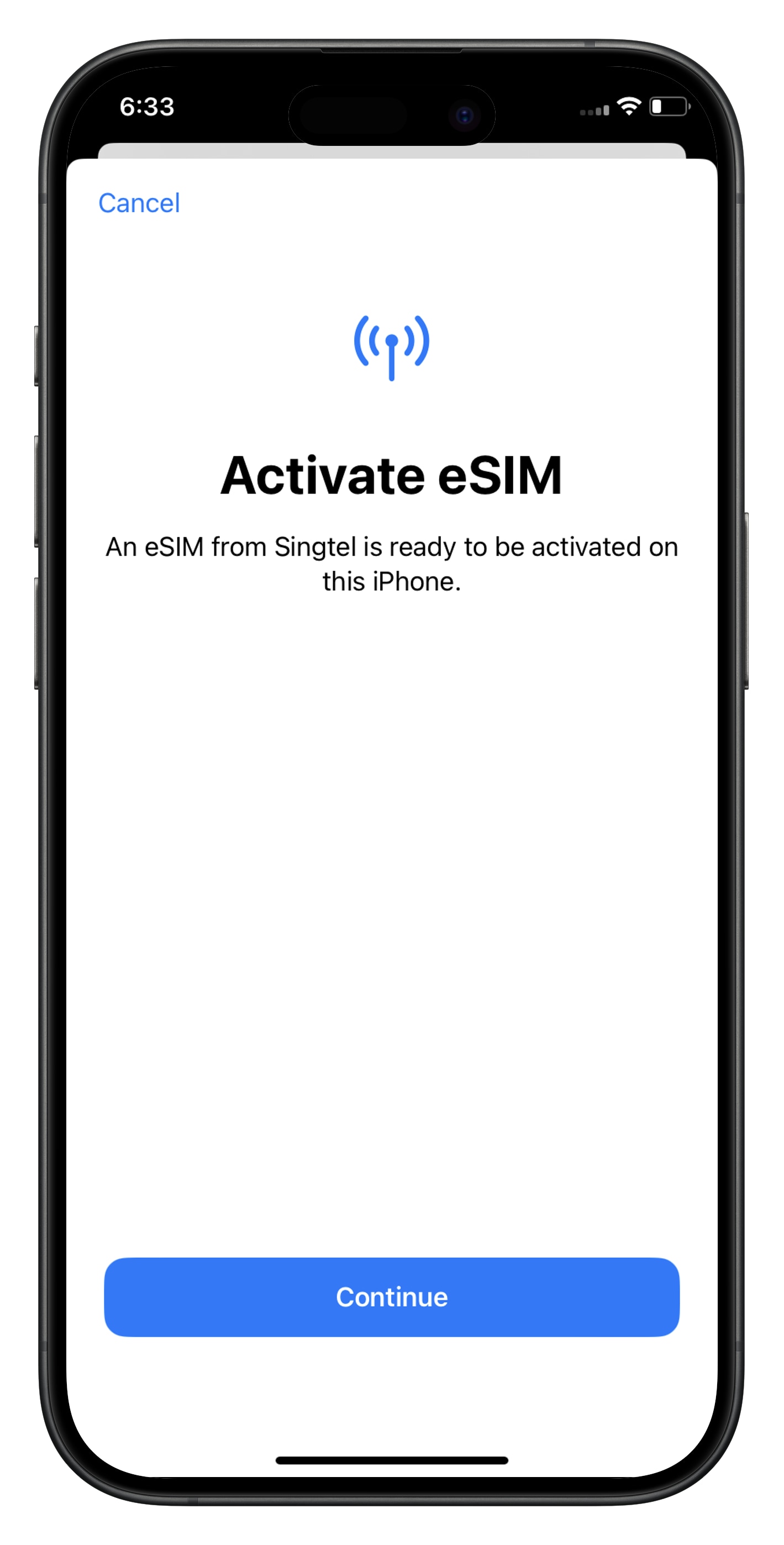
- Step 3. Activate the eSIM on a stable connection. Please do not leave the page while the eSIM is being activated.
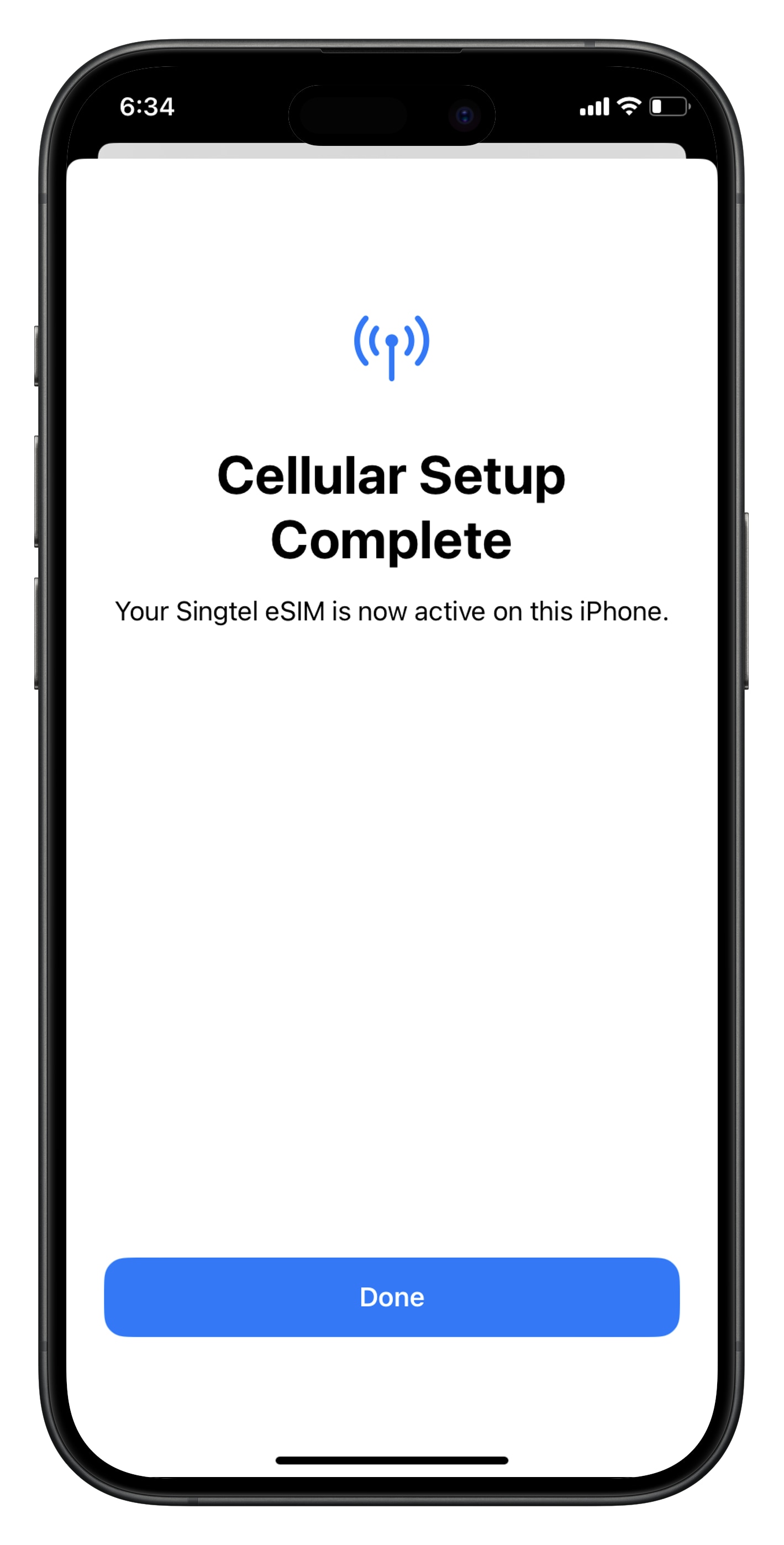
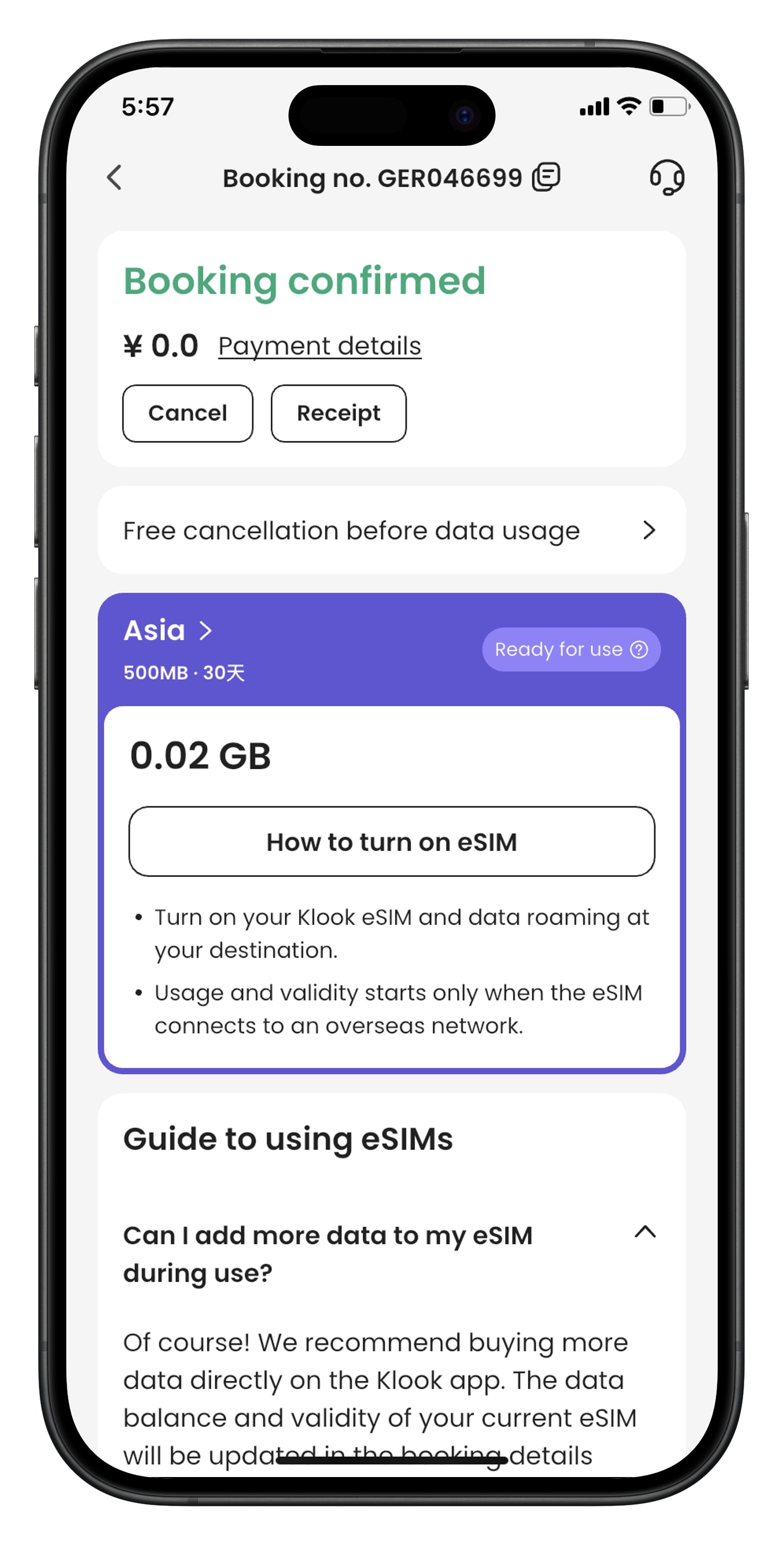
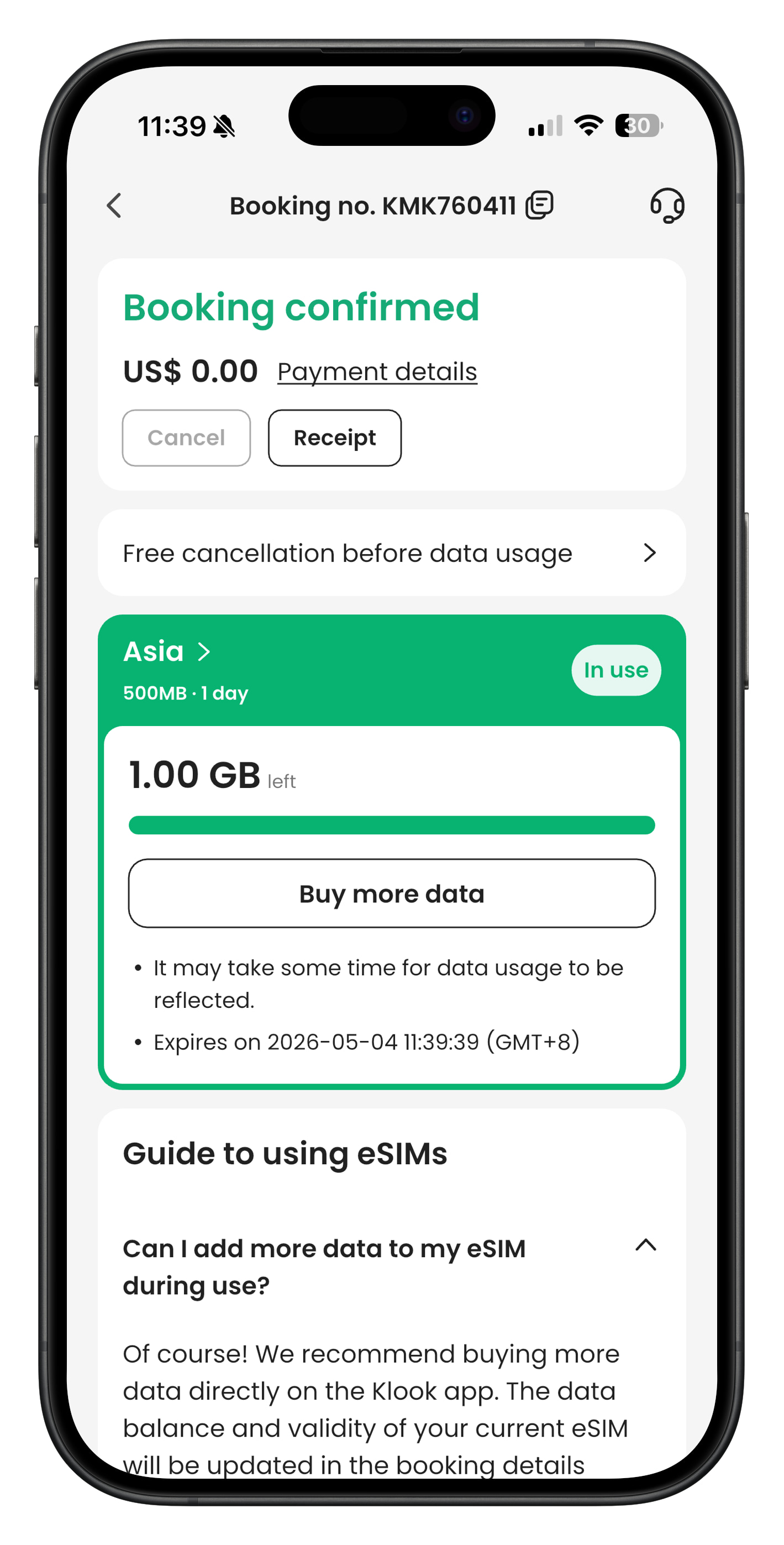
- Step 4. Check the eSIM status in your Klook booking. Tap the icon on the top right corner to get help with any issues. Please note that checking the data balance on the app is enabled only for the “Data in total” packages.
How do I use my KlookCash?
If you have at least 10 KlookCash in your account, you will be able to use your KlookCash.
On your booking check out page, under the "Discount" section, tick the checkbox that says "KlookCash" to apply your KlookCash as a discount on the current price of your booking.
Please note you will not be able to use KlookCash when buying certain products, including but not limited to Klook Passes, e-Gift Cards, Travel Insurances, Stay+ packages and selected events (e.g certain concerts, music festivals, carnivals, exhibitions, sports and marathons). We may also exclude other products at our discretion.
How can I connect to the internet after installing Klook eSIM?
Once your Klook eSIM is installed, follow the steps below to connect to a network. Menu names may vary slightly depending on your device.
1. Select your Klook eSIM
- Go to Settings.
- Tap Mobile, SIM Card Management, or Cellular.
- Check if the Klook eSIM is turned on.
- (For some Android devices) You may also need to turn on an additional eSIM setting from this menu.
2. Turn on Data Roaming For iOS devices:
- Go to Settings > Cellular > SIMs > Data Roaming.
- Turn Data Roaming on for your Klook eSIM.
- To avoid roaming charges, make sure Data Roaming is off for your primary SIM.
For Android devices:
- To avoid unexpected roaming charges, we recommend turning off your primary SIM while using your eSIM. On many Androids, the Data Roaming setting applies to all active SIMs.
🔹 Tip: Menu names and steps may vary depending on your device model and OS version.
When will I receive my booking confirmation?
This depends on the policy of your activity.
- For activities with instant confirmation: You will receive your booking confirmation email within 5 minutes of making your booking.
- For activities without instant confirmation: You will receive your booking confirmation within 24-48 hours of making your booking. Check the package details > Confirmation section of your booking/activity page for the booking confirmation time for your activity.
If you have not received your booking confirmation even after the time mentioned above, please refer to this article.